IT Consultancy
IT Consultancy Get expert guidance to leverage technology for your business growth. We help you identify the right IT solutions, optimize infrastructure, and ensure your digital environment is secure,…

make IT easy


IT Consultancy Get expert guidance to leverage technology for your business growth. We help you identify the right IT solutions, optimize infrastructure, and ensure your digital environment is secure,…
Digital Marketing Grow your brand and reach the right audience with data-driven marketing strategies. We help you create campaigns that convert, manage social channels effectively, and optimize your d…
Privacy Policy At CometSoul, accessible from https://cometsoul.com, one of our main priorities is the privacy of our visitors. This Privacy Policy document contains types of information that is collec…
Welcome to CometSoul! These terms and conditions outline the rules and regulations for the use of CometSoul’s Website, located at https://cometsoul.com. By accessing this website we assume you a…
If you require any more information or have any questions about our site’s disclaimer, please feel free to contact us. Disclaimers for CometSoul All the information on this website – https…

Managed Wi-Fi Service Build a fast, stable, and secure Wi-Fi for your business at Zero depreciation cost. Enterprise-Grade Guest Wi-Fi With $0 Upfront Hardware Costs. We provide, install, and support …

Smart Business System Integrator Simplify your daily operations with smart systems that automate bookings, schedules, and routine tasks so you can focus on growing your business. We set up and integra…

IT Procurement & Hardware Managed Service Keep your technology running smoothly from the hardware you use every day to the systems that power your business. We provide end-to-end IT management so …
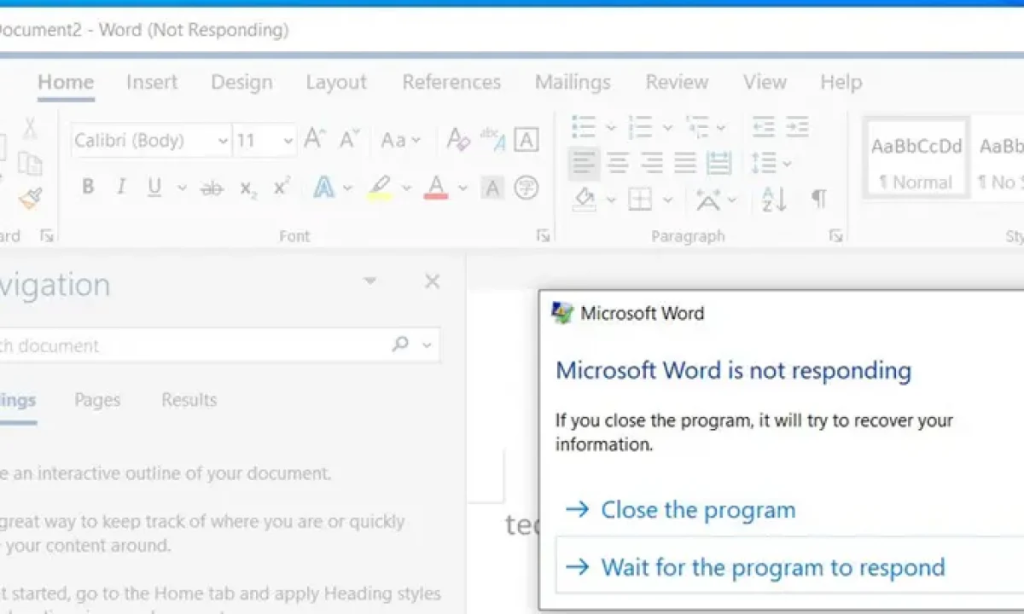
Program Not Responding occurs when an application temporarily fails to respond to commands. If Task Manager won’t open, you can still close or resolve the problem using the following methods.
Click on the program window that is experiencing the error, then press:
Alt + F4
This key combination will prompt Windows to close the currently active application.
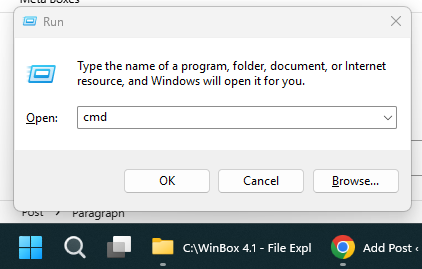
Open Command Prompt by pressing Windows + R, type:
cmd
Then press Enter .
To see a list of running programs, use the command:
tasklist
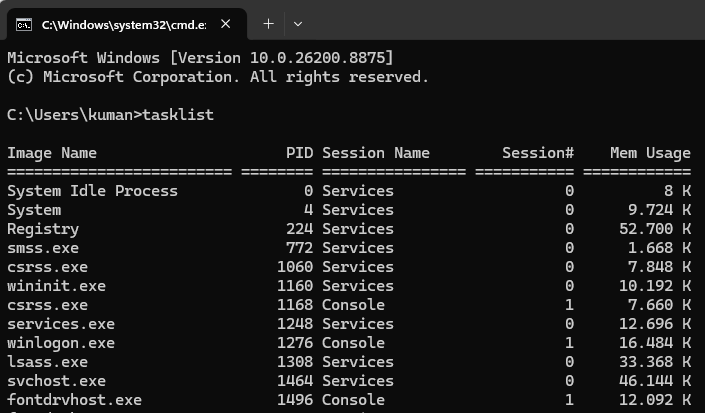
After finding the program name, close it with the command:
taskkill /IM namaprogram.exe /F
Example to close Google Chrome:
taskkill /IM chrome.exe /F
The parameter /Fis used to force close the program.
Right-click the Start menu , then select Windows PowerShell or Terminal .
Use the following command:
Stop-Process -Name namaprogram -Force
Example:
Stop-Process -Name chrome -Force
The program name is written without the extension .exe.
Press:
Ctrl + Alt + Delete
Then select Sign out to log out of your Windows account. This will close all running applications, including the program that’s not responding.
Make sure important work is saved before using this method.
If the program still won’t close, restart the computer via the Start > Power > Restart menu .
If Windows is completely unresponsive, press the computer’s power button for a few seconds until the device turns off. This should only be used as a last resort, as it can result in the loss of unsaved data.
Some steps that can be taken to reduce this problem include:
Unresponsive programs can be closed without Task Manager using Alt + F4, Command Prompt, PowerShell, Sign Out, or Restart. Use the force-quit method only if the application is truly unresponsive to avoid data loss.