IT Consultancy
IT Consultancy Get expert guidance to leverage technology for your business growth. We help you identify the right IT solutions, optimize infrastructure, and ensure your digital environment is secure,…

make IT easy


IT Consultancy Get expert guidance to leverage technology for your business growth. We help you identify the right IT solutions, optimize infrastructure, and ensure your digital environment is secure,…
Digital Marketing Grow your brand and reach the right audience with data-driven marketing strategies. We help you create campaigns that convert, manage social channels effectively, and optimize your d…
Privacy Policy At CometSoul, accessible from https://cometsoul.com, one of our main priorities is the privacy of our visitors. This Privacy Policy document contains types of information that is collec…
Welcome to CometSoul! These terms and conditions outline the rules and regulations for the use of CometSoul’s Website, located at https://cometsoul.com. By accessing this website we assume you a…
If you require any more information or have any questions about our site’s disclaimer, please feel free to contact us. Disclaimers for CometSoul All the information on this website – https…

Managed Wi-Fi Service Build a fast, stable, and secure Wi-Fi for your business at Zero depreciation cost. Enterprise-Grade Guest Wi-Fi With $0 Upfront Hardware Costs. We provide, install, and support …

Smart Business System Integrator Simplify your daily operations with smart systems that automate bookings, schedules, and routine tasks so you can focus on growing your business. We set up and integra…

IT Procurement & Hardware Managed Service Keep your technology running smoothly from the hardware you use every day to the systems that power your business. We provide end-to-end IT management so …
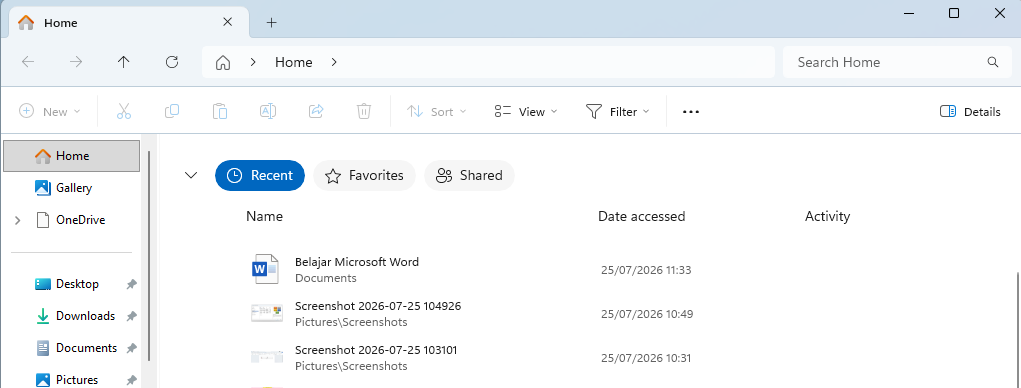
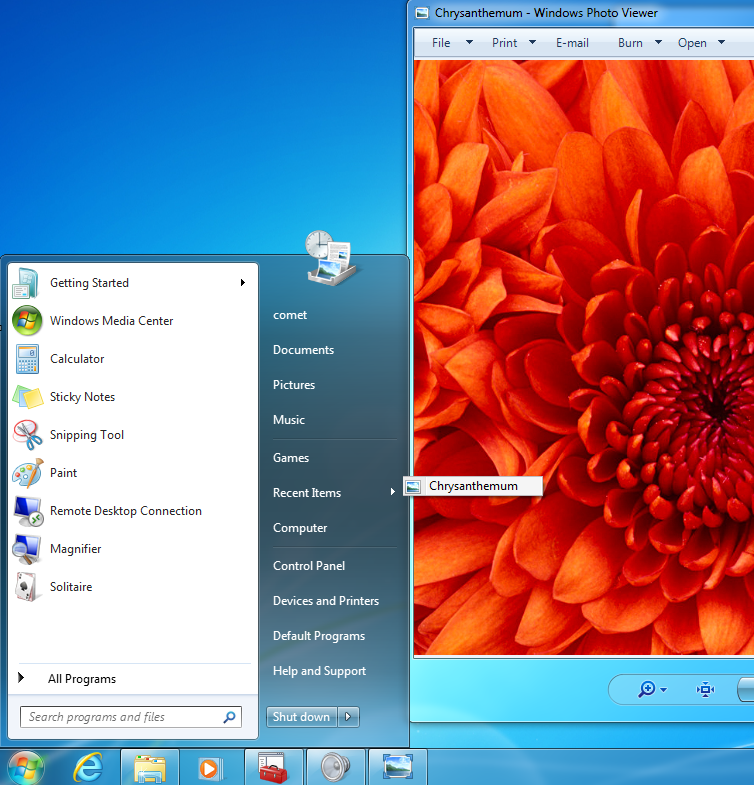
The Recent Items or Recent Documents menu displays a list of recently opened files. This feature makes it easy for users to reopen documents without having to manually search for them.
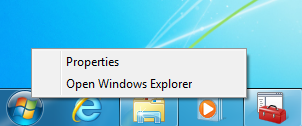
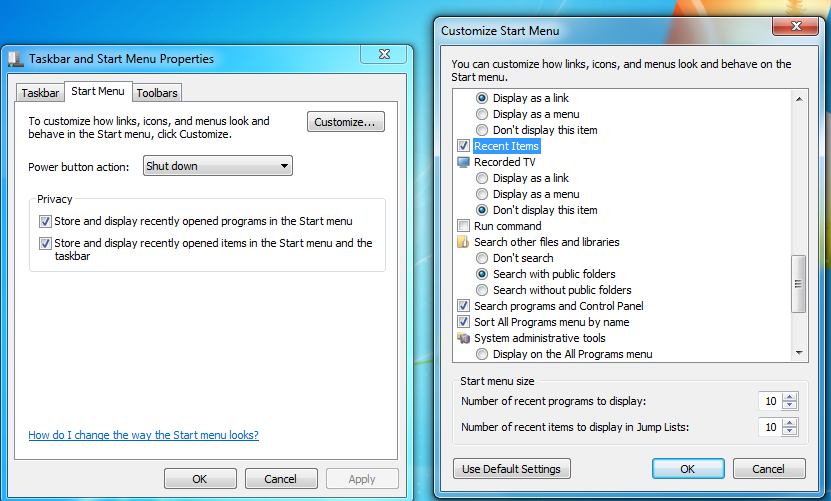
Once activated, the Recent Items menu will appear on the Windows 7 Start Menu.
Also make sure the following options are checked:
Store and display recently opened items in the Start menu and the taskbar
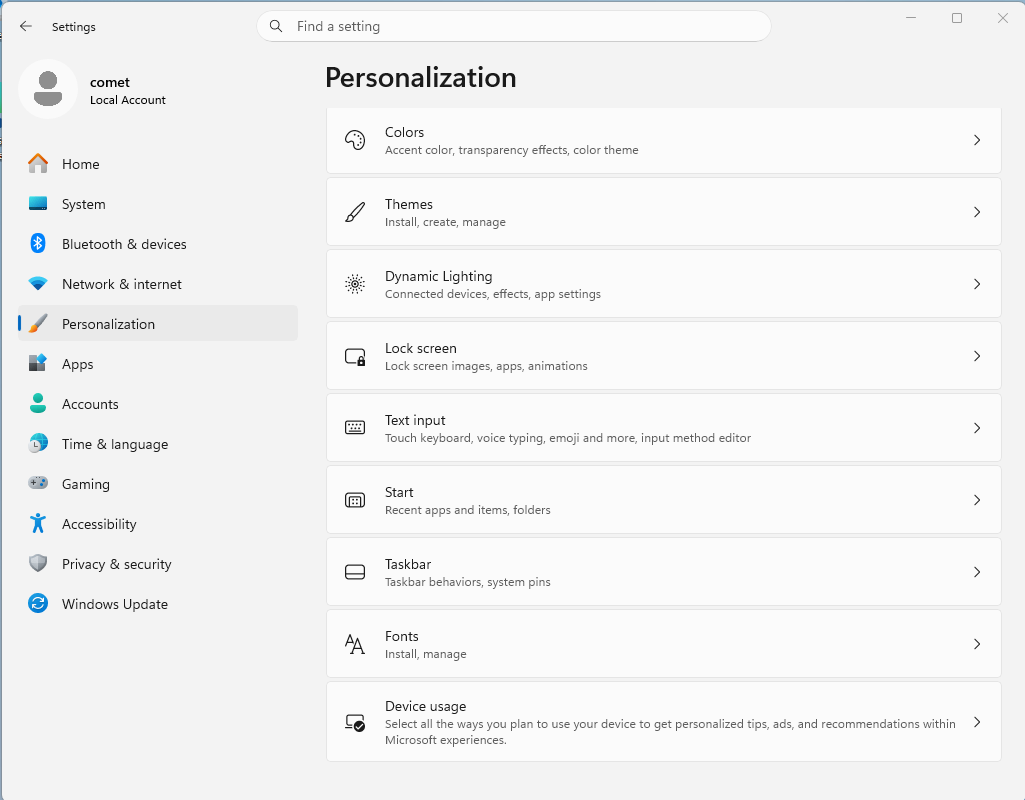
Show recommended files in Start, recent files in Explorer, and items in Jump Lists (or Show recently opened items on older versions)
Recently opened files will be displayed in the Recommended section in the Start Menu, Jump List, and File Explorer.
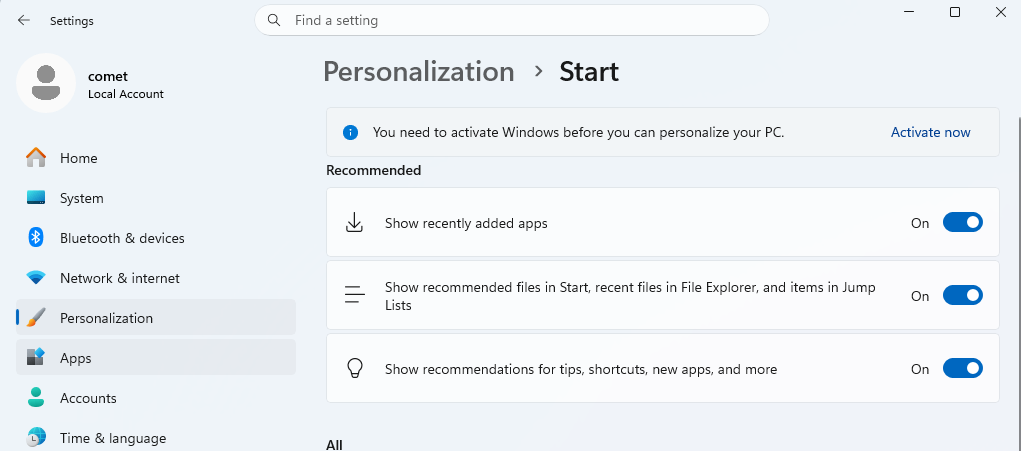
The folder containing the list of recent files can be opened in the following way:
Windows + R.shell:recent
Windows will open a folder containing shortcuts to recently used files.
shell:recent
This shortcut can be used to open a list of recent documents directly from the desktop.
The Recent Items or Recent Documents menu can help users access recently opened files more quickly. In Windows 7, this feature can be accessed through the Start Menu settings. Meanwhile, in Windows 10 and 11, this feature is available through Personalization and File Explorer settings.