IT Consultancy
IT Consultancy Get expert guidance to leverage technology for your business growth. We help you identify the right IT solutions, optimize infrastructure, and ensure your digital environment is secure,…

make IT easy


IT Consultancy Get expert guidance to leverage technology for your business growth. We help you identify the right IT solutions, optimize infrastructure, and ensure your digital environment is secure,…
Digital Marketing Grow your brand and reach the right audience with data-driven marketing strategies. We help you create campaigns that convert, manage social channels effectively, and optimize your d…
Privacy Policy At CometSoul, accessible from https://cometsoul.com, one of our main priorities is the privacy of our visitors. This Privacy Policy document contains types of information that is collec…
Welcome to CometSoul! These terms and conditions outline the rules and regulations for the use of CometSoul’s Website, located at https://cometsoul.com. By accessing this website we assume you a…
If you require any more information or have any questions about our site’s disclaimer, please feel free to contact us. Disclaimers for CometSoul All the information on this website – https…

Managed Wi-Fi Service Build a fast, stable, and secure Wi-Fi for your business at Zero depreciation cost. Enterprise-Grade Guest Wi-Fi With $0 Upfront Hardware Costs. We provide, install, and support …

Smart Business System Integrator Simplify your daily operations with smart systems that automate bookings, schedules, and routine tasks so you can focus on growing your business. We set up and integra…

IT Procurement & Hardware Managed Service Keep your technology running smoothly from the hardware you use every day to the systems that power your business. We provide end-to-end IT management so …
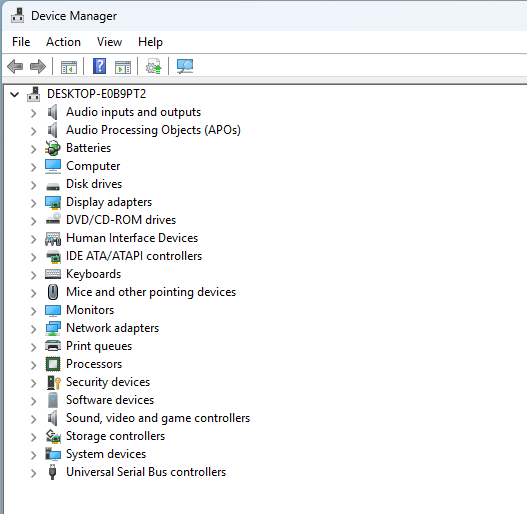
Before reinstalling Windows, it’s a good idea to back up your drivers first. Driver backups help save device drivers such as Wi-Fi, LAN, audio, chipset, printer, and graphics card drivers so they can be reused after the installation is complete.
On Windows 10 and Windows 11, driver backup can be done without additional applications using the DISM command .
Create a folder to store the drivers, for example:
C:\BackupDriver
The computer I’m using happens to only have drive C, so it’s best to use a different drive C:to prevent the backup folder from being deleted when Windows is reinstalled.
If the export process uses drive C, it’s best to back it up to another location, such as a USB drive or other more secure storage.
cmd.Enter the following command:
DISM /Online /Export-Driver /Destination:"C:\BackupDriver"
Then press Enter .
Windows will export the installed drivers to the C folder :\BackupDriver. Wait for the process to complete and for a message to appear stating that the operation was successful.
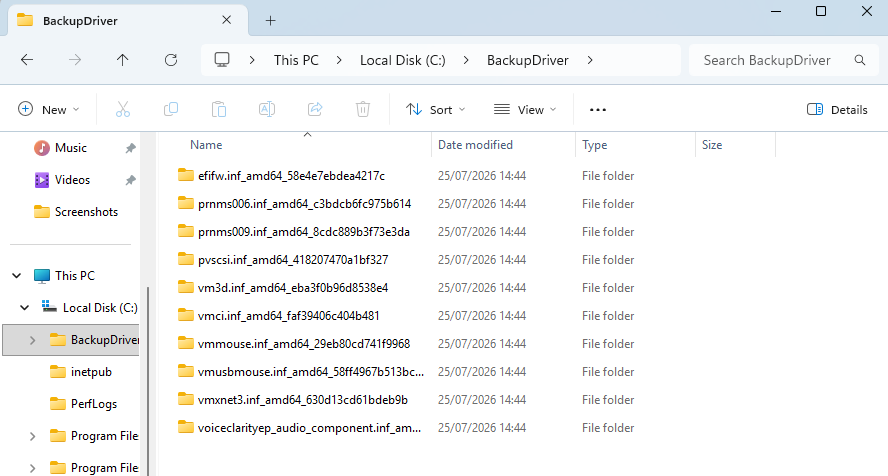
Once Windows has finished reinstalling, the drivers can be reinstalled via Device Manager.
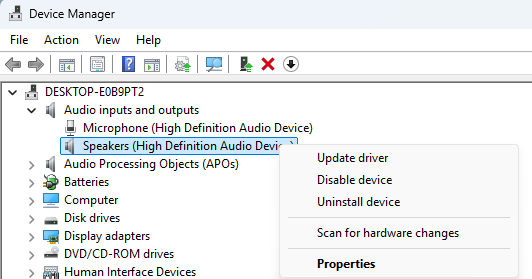
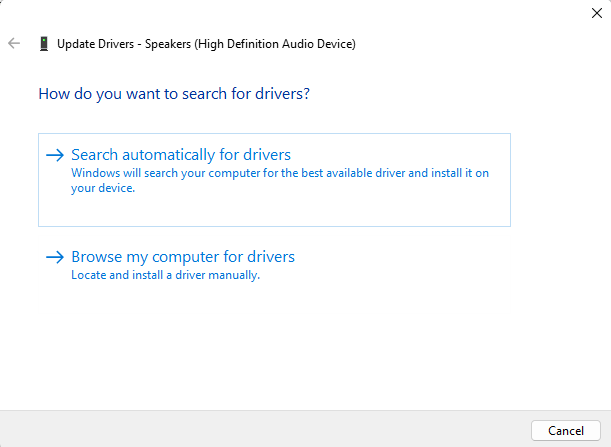
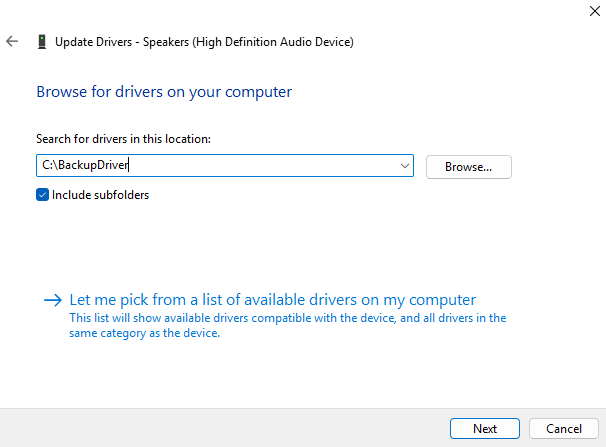
Windows will search for and install the appropriate driver from the backup folder.
The DISM command only backs up installed third-party drivers. Windows default drivers are not backed up because they are usually already available in the operating system.
Driver backups should also be used on the same computer or laptop. Drivers from other devices may not be compatible.
Additionally, driver backups do not always save additional applications from the laptop manufacturer, such as battery management applications, function keys, audio, or device controls.
Driver backup in Windows can be done without additional software using the DISM command:
DISM /Online /Export-Driver /Destination:"D:\BackupDriver"
This method is suitable to be done before reinstalling Windows so that important drivers, especially Wi-Fi and LAN, can be reinstalled without having to download them from the internet.