IT Consultancy
IT Consultancy Get expert guidance to leverage technology for your business growth. We help you identify the right IT solutions, optimize infrastructure, and ensure your digital environment is secure,…

make IT easy


IT Consultancy Get expert guidance to leverage technology for your business growth. We help you identify the right IT solutions, optimize infrastructure, and ensure your digital environment is secure,…
Digital Marketing Grow your brand and reach the right audience with data-driven marketing strategies. We help you create campaigns that convert, manage social channels effectively, and optimize your d…
Privacy Policy At CometSoul, accessible from https://cometsoul.com, one of our main priorities is the privacy of our visitors. This Privacy Policy document contains types of information that is collec…
Welcome to CometSoul! These terms and conditions outline the rules and regulations for the use of CometSoul’s Website, located at https://cometsoul.com. By accessing this website we assume you a…
If you require any more information or have any questions about our site’s disclaimer, please feel free to contact us. Disclaimers for CometSoul All the information on this website – https…

Managed Wi-Fi Service Build a fast, stable, and secure Wi-Fi for your business at Zero depreciation cost. Enterprise-Grade Guest Wi-Fi With $0 Upfront Hardware Costs. We provide, install, and support …

Smart Business System Integrator Simplify your daily operations with smart systems that automate bookings, schedules, and routine tasks so you can focus on growing your business. We set up and integra…

IT Procurement & Hardware Managed Service Keep your technology running smoothly from the hardware you use every day to the systems that power your business. We provide end-to-end IT management so …
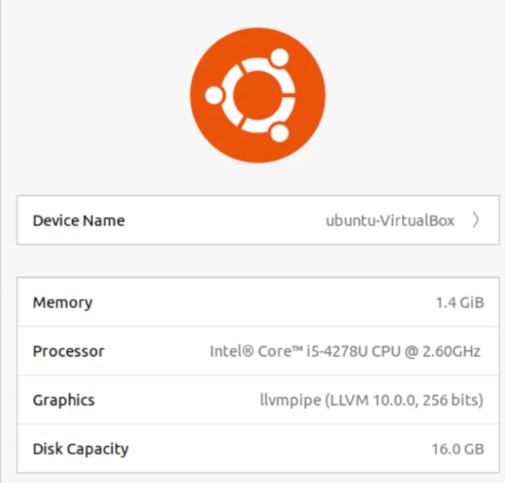
Changing the hostname in Ubuntu Linux is actually simple and does not always require a reboot. In most cases, you can update the hostname live without interrupting running services. This is especially useful for sysadmins who need to make quick adjustments on production servers.
The easiest method is using the hostnamectl command, which is the standard tool in modern Ubuntu systems. First, check the current hostname with:
hostnamectl
Next, change the hostname using the following command (replace new-hostname with your desired name):
sudo hostnamectl set-hostname new-hostname
The change takes effect immediately without restarting the system. However, to keep local name resolution consistent, you should also update the /etc/hosts file. Open the file with:
sudo nano /etc/hosts
Then modify the line that contains the old hostname (usually the 127.0.1.1 entry) and replace it with the new hostname. Save the file when finished.
Finally, verify the change by running:
hostnamectl
If the new hostname appears, the process was successful. Using this approach, you can safely change the Ubuntu hostname quickly and without downtime—an ideal practice for always-on server environments.Changing the hostname in Ubuntu Linux is actually simple and does not always require a reboot. In most cases, you can update the hostname live without interrupting running services. This is especially useful for sysadmins who need to make quick adjustments on production servers.
The easiest method is using the hostnamectl command, which is the standard tool in modern Ubuntu systems. First, check the current hostname with:
hostnamectl
Next, change the hostname using the following command (replace new-hostname with your desired name):
sudo hostnamectl set-hostname new-hostname
The change takes effect immediately without restarting the system. However, to keep local name resolution consistent, you should also update the /etc/hosts file. Open the file with:
sudo nano /etc/hosts
Then modify the line that contains the old hostname (usually the 127.0.1.1 entry) and replace it with the new hostname. Save the file when finished.
Finally, verify the change by running:
hostnamectl
If the new hostname appears, the process was successful. Using this approach, you can safely change the Ubuntu hostname quickly and without downtime—an ideal practice for always-on server environments.